
Consignments can be created from two locations on your WooCommerce Dashboard; the admin shop order list and the admin order detail screen.
Bulk creating consignments
With the WooCommerce Parcelforce integration plugin, it’s possible to create shipping consignments in bulk.
In order to bulk create shipping consignments:
- From the WordPress Admin Dashboard
- Find WooCommerce item located in the main menu (black sidebar)
- Hover your mouse over the menu item.
- Click Orders from the items that are revealed.
- Select the orders you’d like to create shipping consignments for. Using the checkbox on the left of each order.
- From the bulk actions dropdown select Generate Shipping Consignments
- Click Apply
The consignment creation panel will then slide in from the right side of the screen. Complete the form shown within the panel and click Generate Consignments.
International consignments cannot be bulk created. Instead, you will have to create each one individually.
Creating single consignments
You can also create and manage your consignments for orders individually by:
- From the WordPress Admin Dashboard
- Find WooCommerce item located in the main menu (black sidebar)
- Hover your mouse over the menu item.
- Click Orders from the items that are revealed.
- Click on the order id for the order you’d like to create a consignment for. (to view the full order details).
- In the right column, you’ll now see a box labelled “Shipping Consignments” if the order has consignments they will be shown here. If the order has no consignments you will see a blue create consignment button.
- Click Create consignment
The consignment creation panel will then slide in from the right side of the screen. Complete the form shown within the panel and click Generate Labels.
Consignment creation panel
The consignment creation panel is used to specify the settings that will be passed to the Parcelforce Click & Drop system and create the consignment.
“Shipping Provider” allows you to select which shipping provider the consignments will be created for. With the WooCommerce Parcelforce Integration plugin you will be able to select either Parcelforce or Royal Mail.
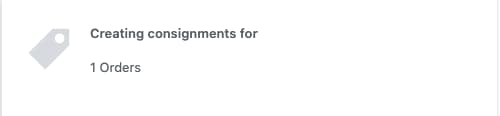
“Saved Templates” If you have saved any templates, you will be able to select them. This will then prefill the remaining fields with the ones from the saved template.
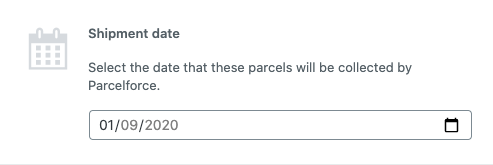
“Consignment Date” This is the date that the consignment will be arranged for. You will still have to arrange pick-up/drop-of for the parcel with Parcelforce.
“Weight in Grams, The total parcel weight in grams, if you’re using the bulk generation feature you should leave this blank, and it will calculate the weight from the items in the order. (Assuming a weight has been set to the products).
“Package Format”, Is the dimensions, and weight of the parcel looking to be shipped. They use standard Royal Mail sizes and weight limitations.
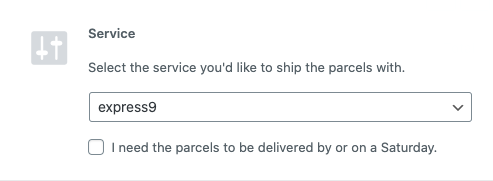
“Service” This is where you should select the service you’d like to send the parcels with. The list is quite long so if you only use one or two services, we suggest making a template to prefill this option.
“Safe Place” Allows you to select specified “Safe places”.
“Request Signature Upon Delivery” some services allow requesting of signatures, setting this will put a note to the driver on the consignment.
“Consequential Loss” informs Parcelforce of the consequential loss if the parcel isn’t delivered / delivered on-time. Selecting Yes will show a value field.
“Dangerous Goods” Allows you to inform Parcelforce of any dangerous items within the parcel. We suggest reading the Parcelforce guidlines for what constitutes a dangerous good.
Note that the Parcelforce Click & Drop system only allows one dangerous good item to be specified per order, as such if you have multiple (different) dangerous items, they will need to be shipped seperately.
“Notification Settings” allows you to select the notifications to send. Note that not all services allow for notifications.
After creating a consignment
Once you’ve created your consignments you’ll be shown a list containing the order number, Parcelforce consignment number, and the print label buttons.
You can print the labels for each consignment individually or use the “Print all labels” button located at the top of the consignment creation panel.
If you’re using an OLP account, you will be shown a link to go to the Click & Drop protal, where you can pay/print the labels. Don’t worry, the tracking information will be pulled back to the website automatically.
Last modified on
Related Guides
-
Getting Started
Learn how to install, and set up the WooCommerce Parcelforce plugin on your WordPress website.
-
Connect to Click & Drop
Learn how to set up the WooCommerce Parcelforce plugin and have it connect to your Parcelforce WDMO account.
-
Printing consignment labels
Learn how to print Parcelforce Consignments from within the WooCommerce Dashboard.
-
Licensing & Updates
Information about the support and licensing for the WooCommerce Parcelforce plugin.
-
Consignment Templates
Learn how to create consignment templates that allow you to save common settings for the creation panel.
Features
Looking for the WooCommerce Parcelforce
Integration features page?
Need some extra help?
Need some help with your plugin or account? We’re told that
we’re on the ball when it comes to questions.